
Sign-up and log-in
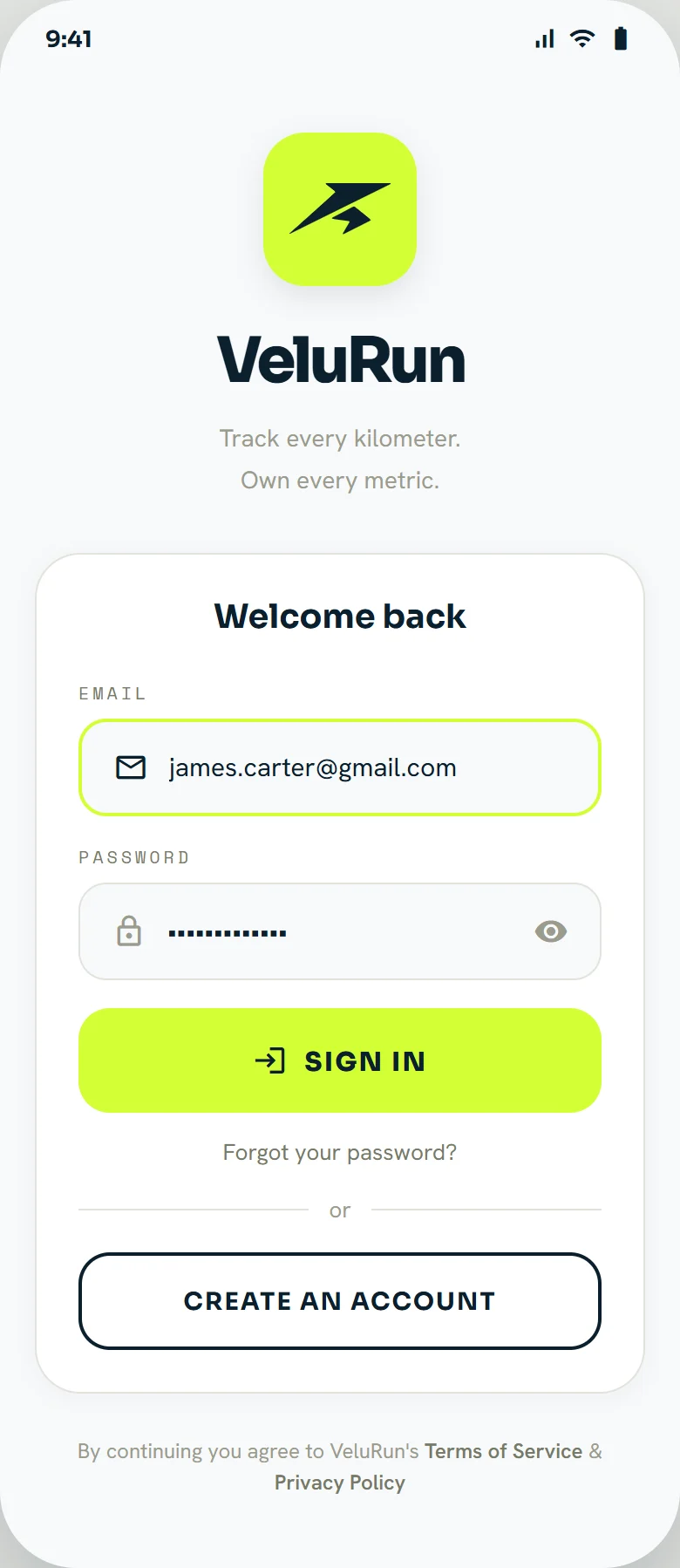
Create your account with your email and a password. When you sign up you get a 6-digit code by email to confirm it.
If the code doesn’t arrive
- Check your spam or junk folder.
- Wait a few seconds: it can take a moment.
- You can request a new code after 60 seconds.

Home screen
Your starting point. From here you reach the stopwatch, your workouts and your activity history, and see a summary of your recent activity.
Find friends
At the top there is a search bar: type a person's name and matches appear as you type. Tap a result to open their profile, see their latest activity and totals, and follow them.
Search works with the username, not the real name: it is the one shown in Profile → Settings, in the second field. Ask your friend for their username (and share yours) and you will find each other.
Your community
Below, the activities of the people you follow appear newest first, each with its route, distance, pace and time. You can give a Velo or leave a comment. Your own activities show up the same way for the people who follow you.
Notifications
The bell gathers everything happening around your activities: new Velos, comments and people who start following you. A dot on the icon means there is something unread; opening it marks them as seen.
Stopwatch
Starting an activity
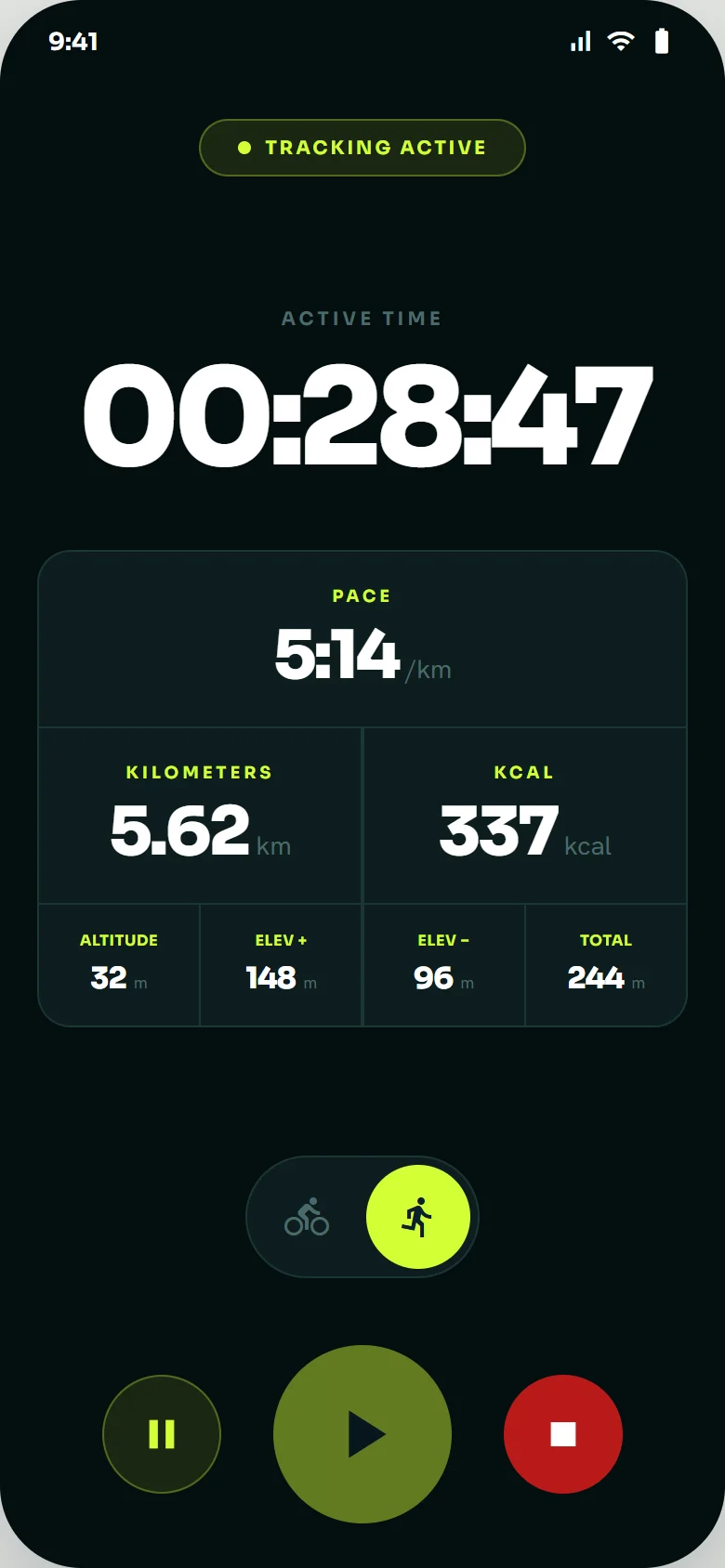
Pick Run or Bike with the bottom selector and tap the big start button. You’ll see the “Recording activity” badge at the top.
What each figure means
- Active time: how long you’ve been moving.
- Pace: minutes per kilometre (or speed in Bike).
- Kilometres: distance covered.
- Calories: estimated burn.
- Altitude and elevation (+ / −): height and metres climbed or descended.
On phones without an altitude sensor, elevation can vary. This doesn’t affect distance or time.
Pause, resume and save
Use pause to stop temporarily and resume whenever you want. The red button ends the activity and saves it to your history.
Permissions
Why location “all the time” is needed
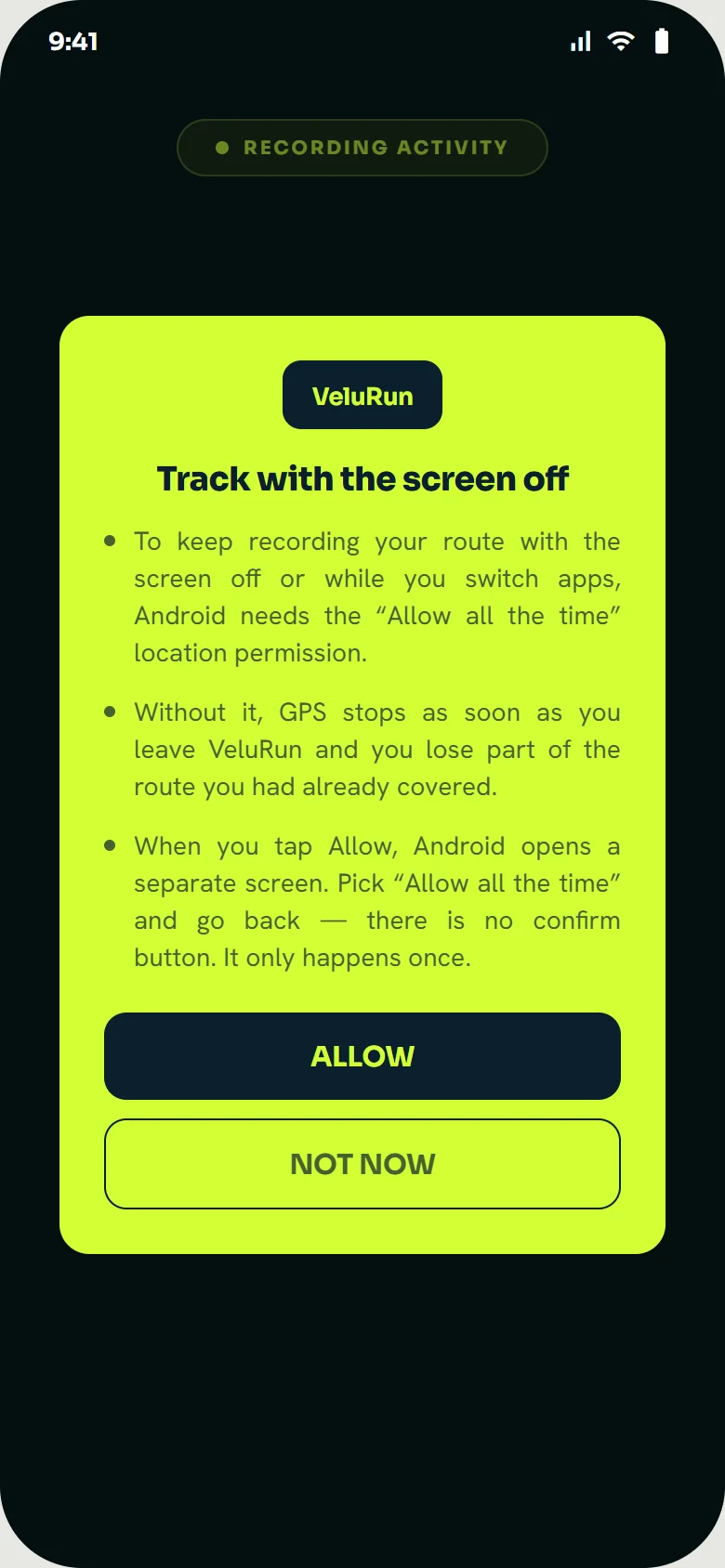
To keep recording your route with the screen off or when you switch apps, Android needs the “Allow all the time” permission, not just “while using the app”.
Step by step
- Tap Allow. Android opens a separate screen.
- Choose “Allow all the time” and go back.
- That screen has no confirm button: that’s normal.
If you tapped “Not now”
You can turn it on later in: VeluRun Settings → Permissions and battery.
If you deny the background permission
The activity still records, but it stops if you turn off the screen or switch apps. For long routes, granting it is recommended.
Workouts
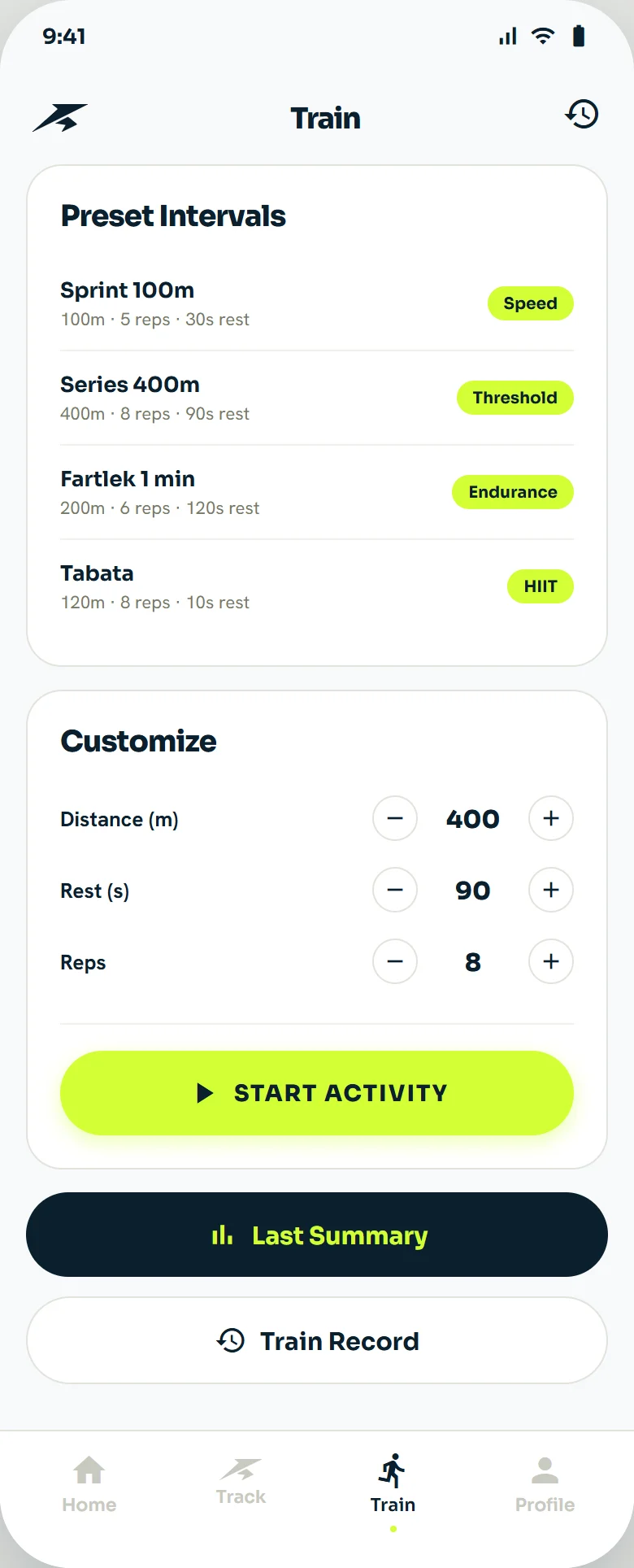
Interval sessions: you run a fixed distance, rest, and repeat. The Train tab has four ready-made presets and a block to build your own.
The four presets
Very short all-out efforts. Works power and stride; the rest is short because the effort is too.
The classic track session. Hard but sustainable pace; it’s what lowers your average race pace.
Pace changes with long recoveries. The friendliest way to start with intervals.
High intensity with minimal rest. The toughest one: only with a base behind you.
Custom: what each variable does
- Distance (m): the metres in each set. More distance = longer effort and slightly slower pace.
- Rest (s): the seconds between sets. Lowering it makes the session harder without changing anything else.
- Sets: how many repetitions you’ll do. Session total is distance × sets.
Adjust with the − / + buttons, tap Start workout and the session begins. Last summary takes you back to the previous workout report, and Workout history opens all your sessions.
Live session
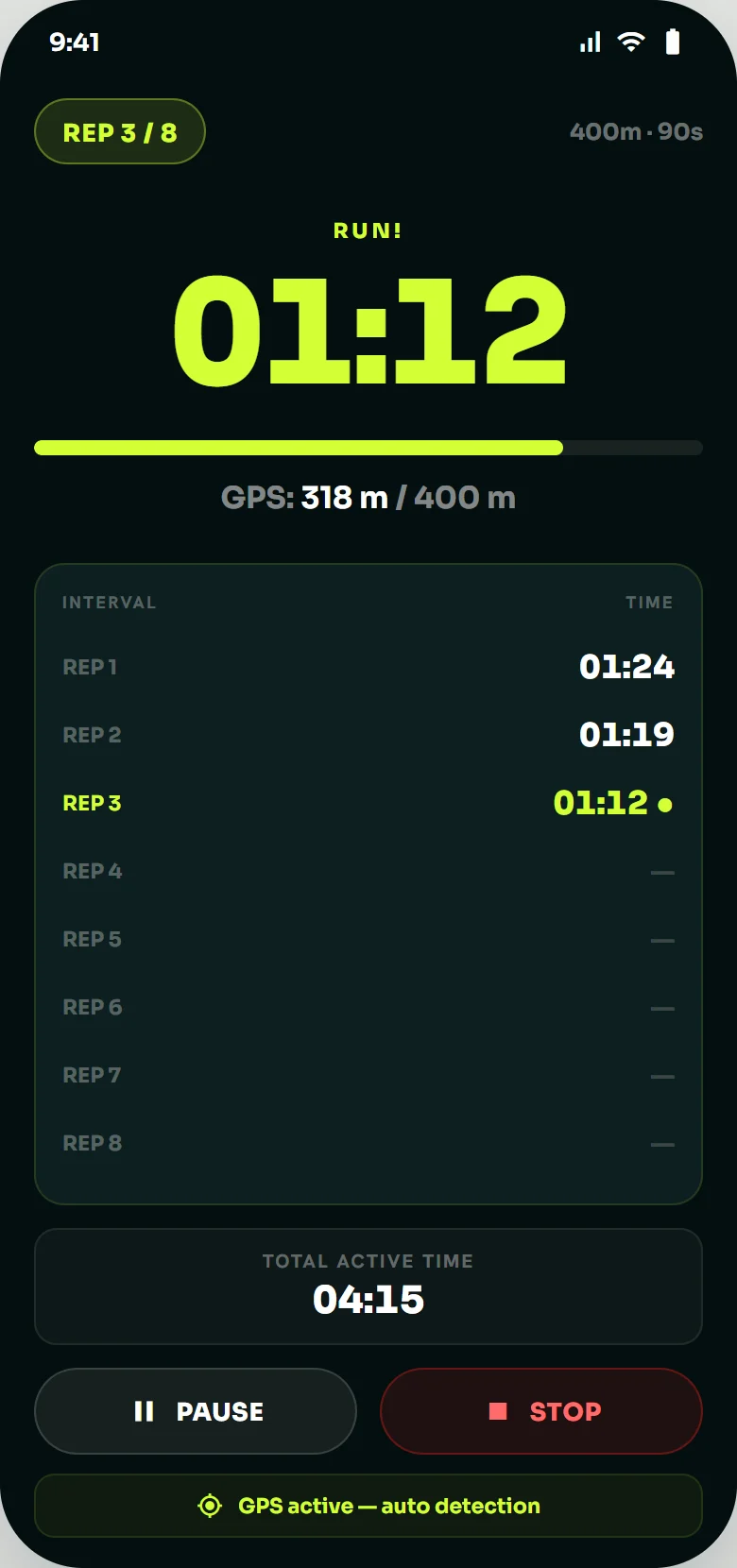
Once started, the screen goes dark and stays on the set you’re running. Here’s what you see:
- Set 3 / 8: which rep you’re on and how many are left. Top right, the active setup (400 m · 90 s).
- Status: alternates between RUNNING and rest, and the big timer counts the current stretch.
- Bar and GPS 318 m / 400 m: how far into the set you are per GPS. The set closes by itself when you hit the distance.
- Set table: the time of each closed rep, the current one in lime and the remaining ones in grey. That’s where you see if your pace is dropping or rising.
- Total active time: the sum of all sets, rests excluded.
- GPS active: confirms there’s signal. If it disappears, distance measurement may lag.
Pause freezes the set and the total; Stop ends the session and saves it with its summary.
Workout history
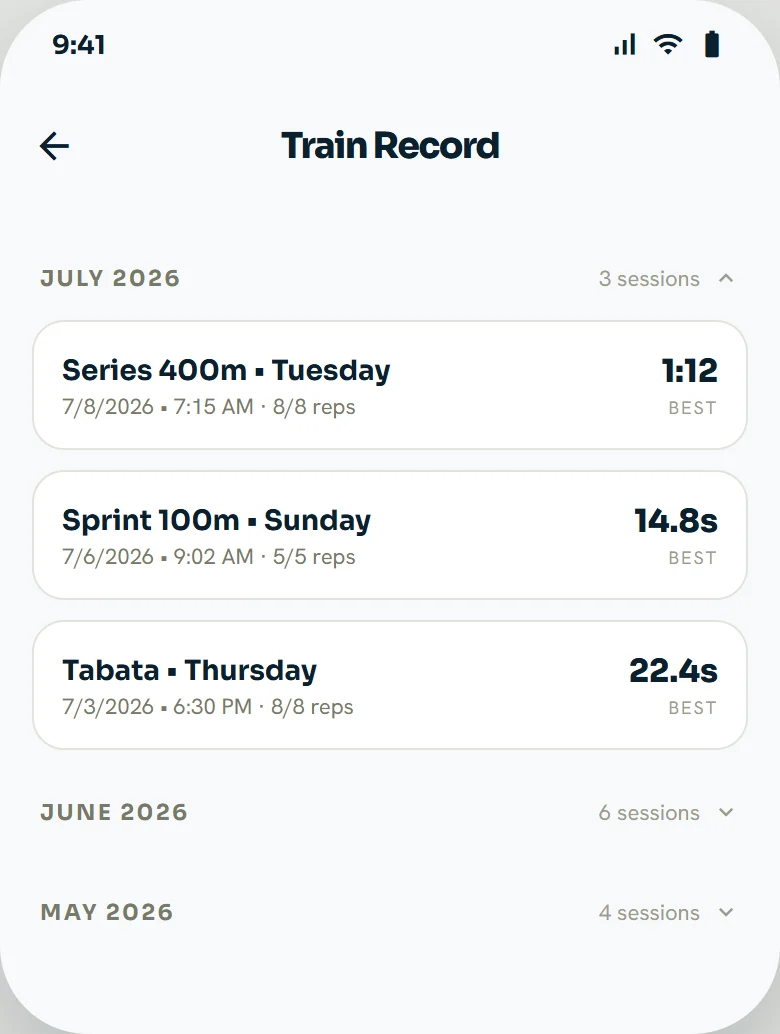
All your interval sessions, grouped by month. Each month folds and unfolds, showing how many sessions you did.
For each session you see:
- The preset and the day — for example “400m sets · Tuesday”.
- Date, time and sets completed (8/8 means you finished it).
- Your best time for that session, on the right: the fastest set of the day.
Comparing the best time of the same preset week to week is the most direct way to see if you’re improving.
Activity history
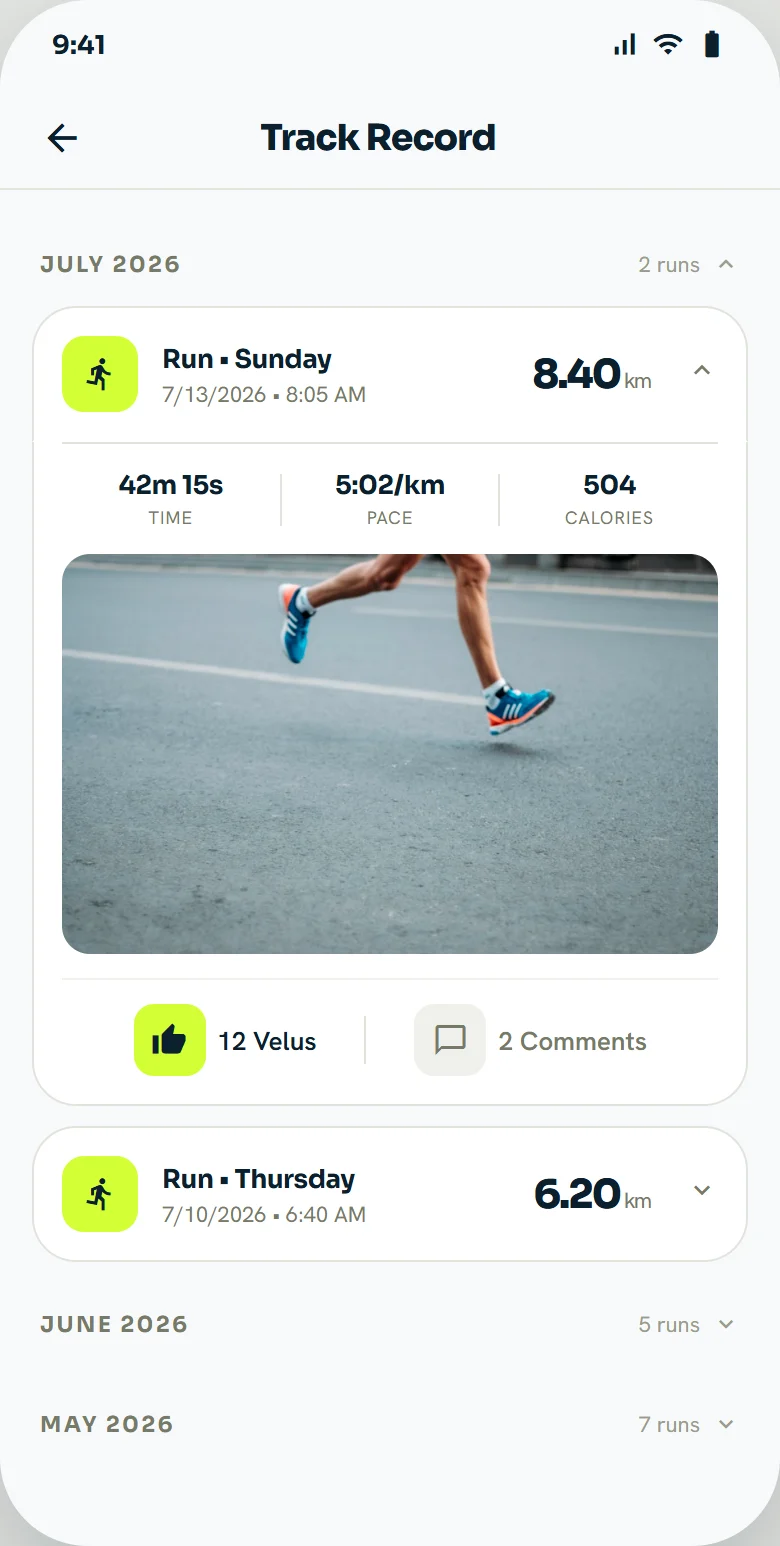
All your saved outings, grouped by month, with the number of runs in each. Tap one to expand it.
When you expand an activity you see:
- Type, day, date and time of the outing, and the distance in large type.
- Time — the active duration of the activity.
- Pace — the average in minutes per kilometre (speed, in Bike).
- Calories — estimated from your weight, the distance and the pace.
- The photo you attached to that outing.
- Velos and comments — the reactions it got from your connections. A “Velo” is VeluRun’s like.
Tap an activity again to fold it back. Previous months unfold the same way, each with its number of runs.

Profile
Your public card and your progress panel. At the top: photo (tap to change it), name, city, country and how long you’ve been a member, with the Edit profile and Share buttons — the latter opens the system share menu, to send your profile by messaging or post it on your networks.
Latest run
The full card for your most recent outing:
- Route map with the neighbourhood or area; the corner icon opens it full screen.
- Distance and time, and below altitude, elevation +, elevation − and total (metres climbed plus descended).
- Average pace highlighted in the dark band.
- Pace per km: one bar per kilometre with its time, and the best km highlighted in lime.
- Velos and comments it received.
Weekly and monthly progress
Two blocks with the same structure — activities, average pace, distance, calories and elevation — plus a bar chart: by day of the week in the weekly one, by week of the month in the monthly one. The lime bar is the current period.
Totals
The all-time total for your account: activities, lifetime average pace, calories, elevation, total distance covered and your longest run as a personal record.
At the bottom, Activity history opens the full list and Log out signs you out without deleting anything.

Settings
Everything configurable in your account, in blocks. Remember to tap Save changes at the end: nothing applies until then.
- My account. Full name and @username — your unique handle, visible to other VeluRunners and what they use to find you. Email is locked: it’s the key to your account and can’t be changed here.
- Language. Spanish, English, Portuguese or French. Changes the whole app instantly, not just the menus.
- Appearance. Light, Dark or System theme (follows your phone). Recording and live-workout screens are always dark, so they stay readable in the sun.
- Location. City and country. This is profile information — it appears under your name and helps people find you; it has nothing to do with activity GPS.
- Body data. Date of birth, weight (kg or lbs) and gender. Weight is what the app uses to estimate calories: if it’s wrong, that figure will be too.
- Sport preference. Whether you usually open in Run or Bike. It’s the mode pre-selected in the stopwatch.
- Units. Metric (km, m, kg) or Imperial (miles, feet, pounds). Affects distance, pace and weight across the app and in already-saved history.
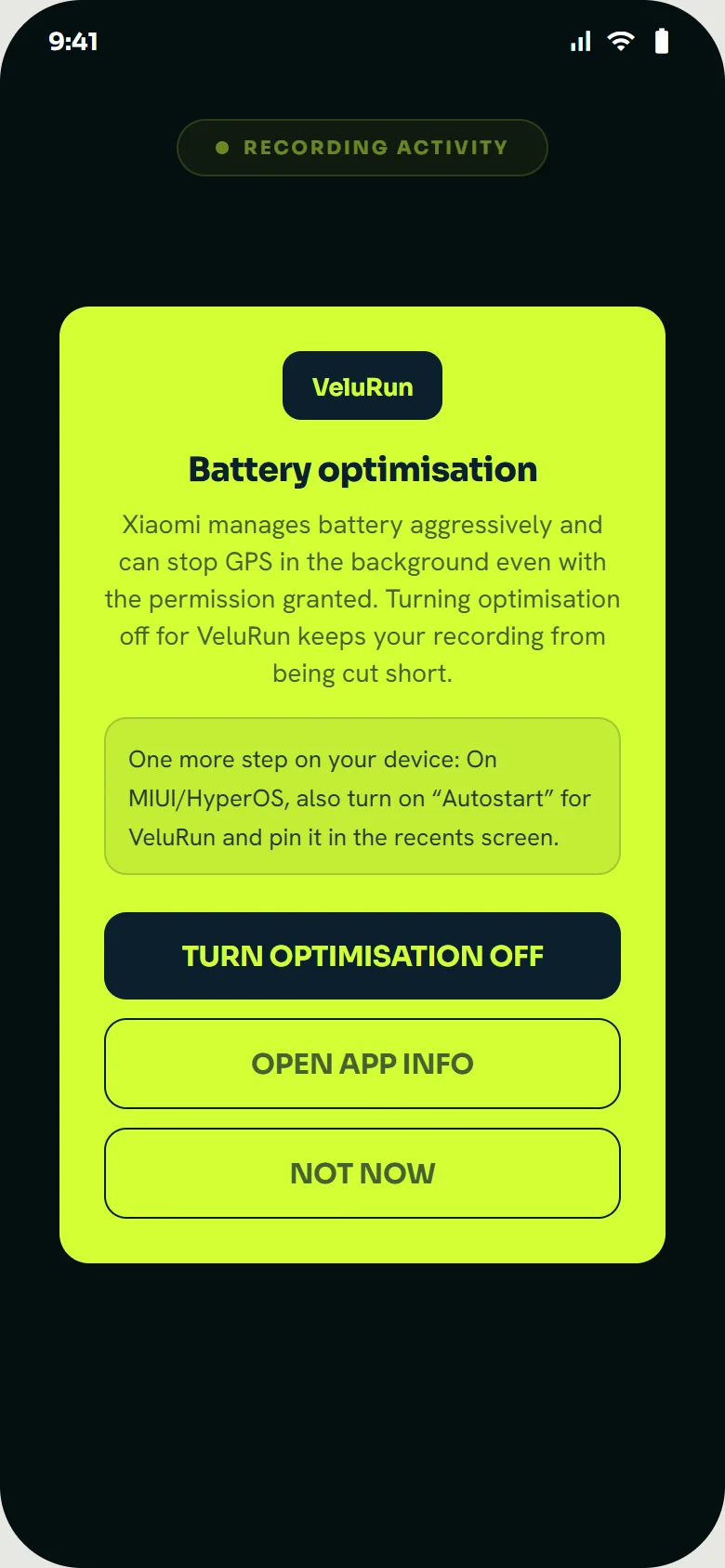
- Permissions and battery. A shortcut to review the location permission and the battery-optimisation exception. This is where you come back if you said “Not now” and GPS cuts out when the screen goes off.
- Security. Change password.
At the bottom: Save changes, Go to profile and Log out.
Still stuck? Write to us and we’ll reply.
info@velurun.com